Ready to Trip?
Create your private profile and get your travel insights.
Create Your Profile Privacy-first. Fast sign-up.
Bring your past trips into Lugara from a file instead of adding them one by one.
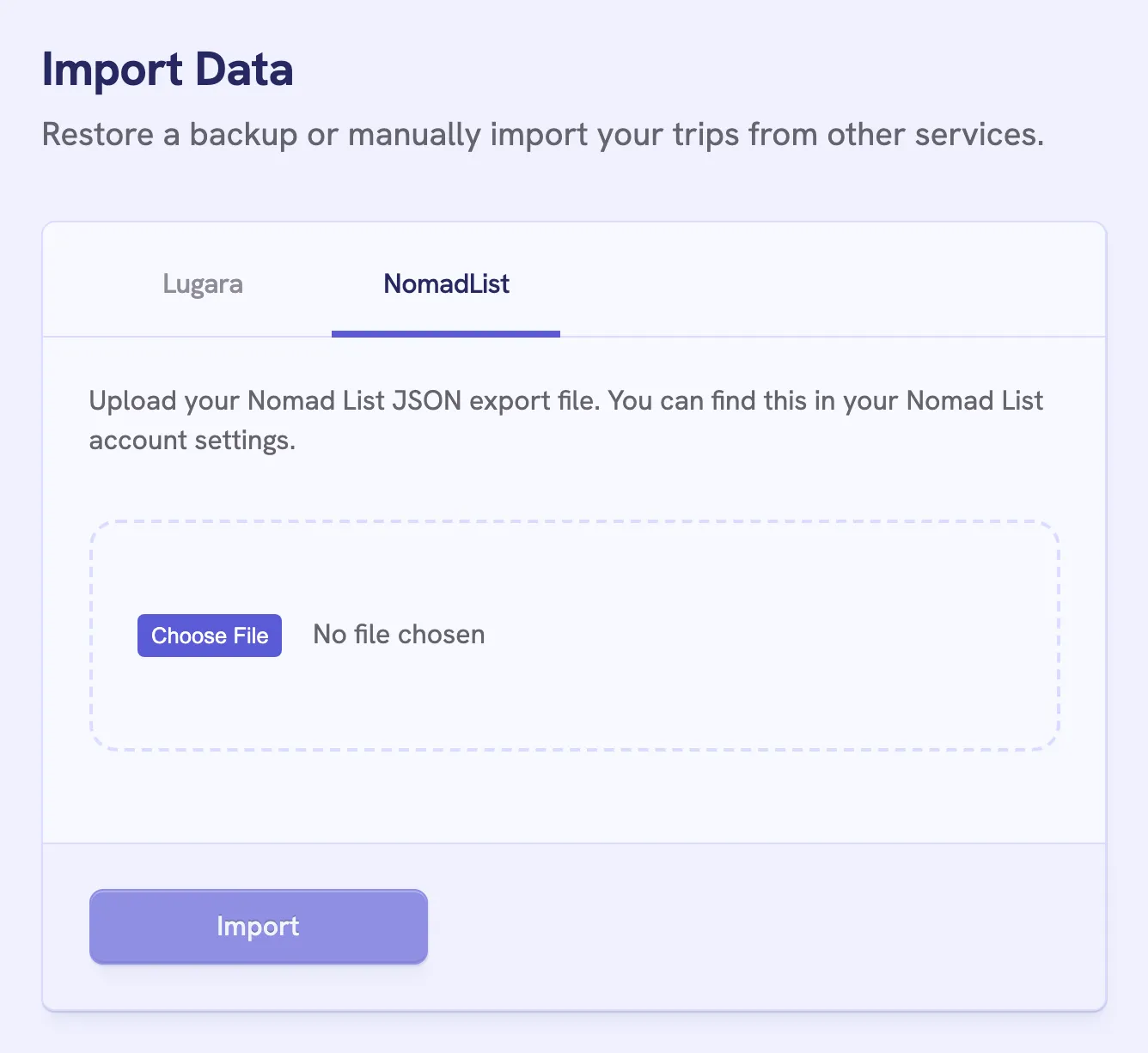
Export your trips as JSON in your NomadList account settings. They arrive without a transport mode, because NomadList doesn’t record one. To keep new NomadList trips coming, set up NomadList sync.
A Lugara backup brings back every trip with its transport mode, your display name, username, bio, website, Instagram, and whether your profile is public. It doesn’t hold your photo or settings. If another account has taken the username since, the import stops with “This username is already taken”.
An import never removes trips or adds one twice. A trip from an earlier import, or one in the same city as yours that starts or ends on the same day, updates your trip instead. Importing an older backup therefore turns matched trips back to how they were.
A free account holds up to 10 trips, and an import counts every trip in its file, even ones you already have. If the total would pass 10, nothing is imported.
Create your private profile and get your travel insights.